
Confirming enrollment
After enrolling in a session, the LMS often sends an email with a confirmation link. It opens a page like /confirm-enrollment?token=….
What you see
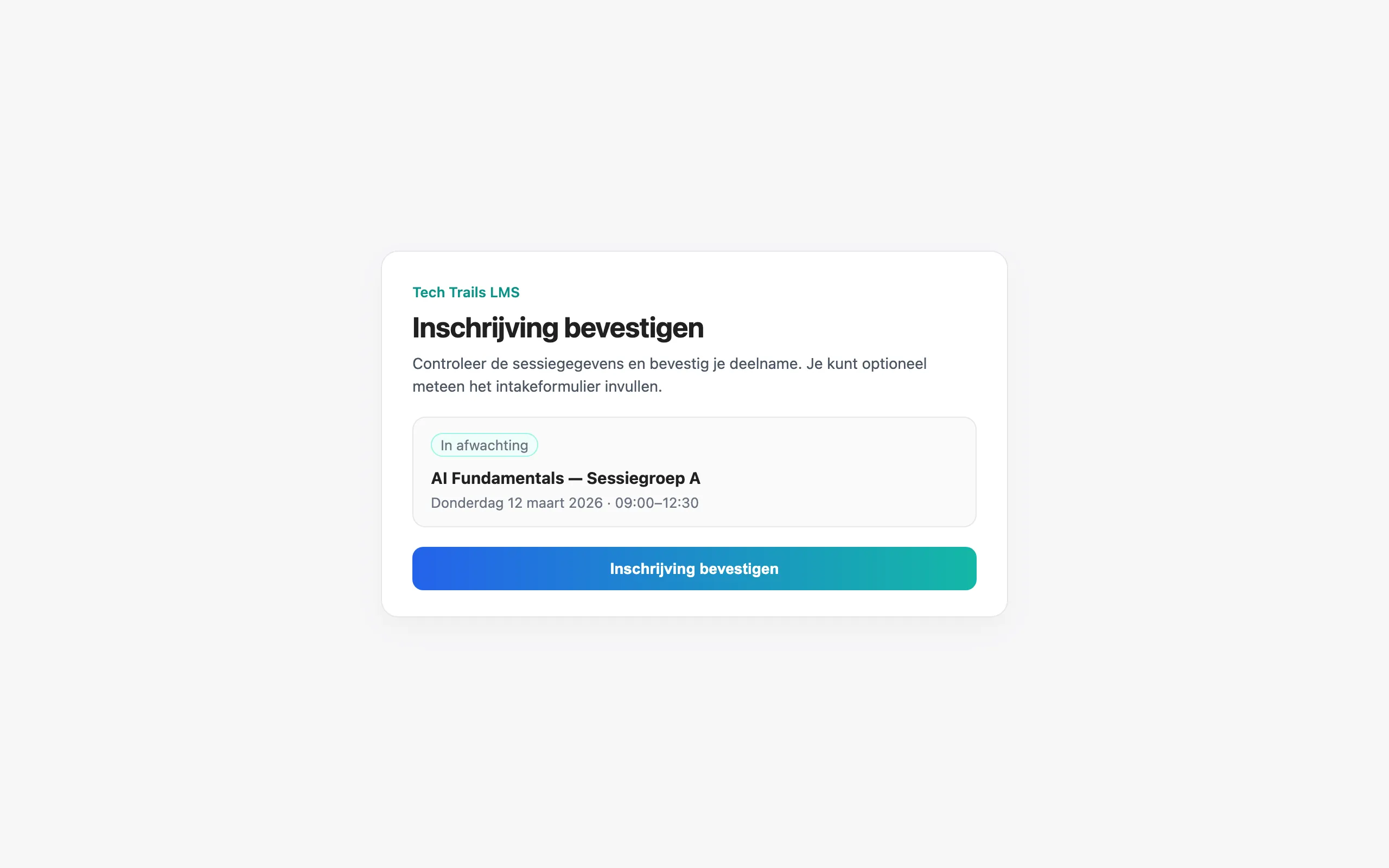
Section titled “What you see”On the confirmation page you typically see:
- The session (title, date/time)
- Your enrollment status
- A button to confirm
- Sometimes an intake form you can fill in right away (if you are signed in)
- Open the confirmation email and click the link (or button).
- Check that the session details are correct.
- Fill in the intake form if prompted.
- Click confirm.
- You see a success message; your enrollment is confirmed.
Troubleshooting
Section titled “Troubleshooting”- Invalid or missing token — open the link again from the email; copy the full URL.
- Error while confirming — try again, or sign in first and reopen the link.
- Wrong session — contact your organization; do not re-enroll without checking.