
Signing in
Open Sign in from the landing page, or go directly to /signin.
On the sign-in screen you can choose Google, email code, magic link, or password.
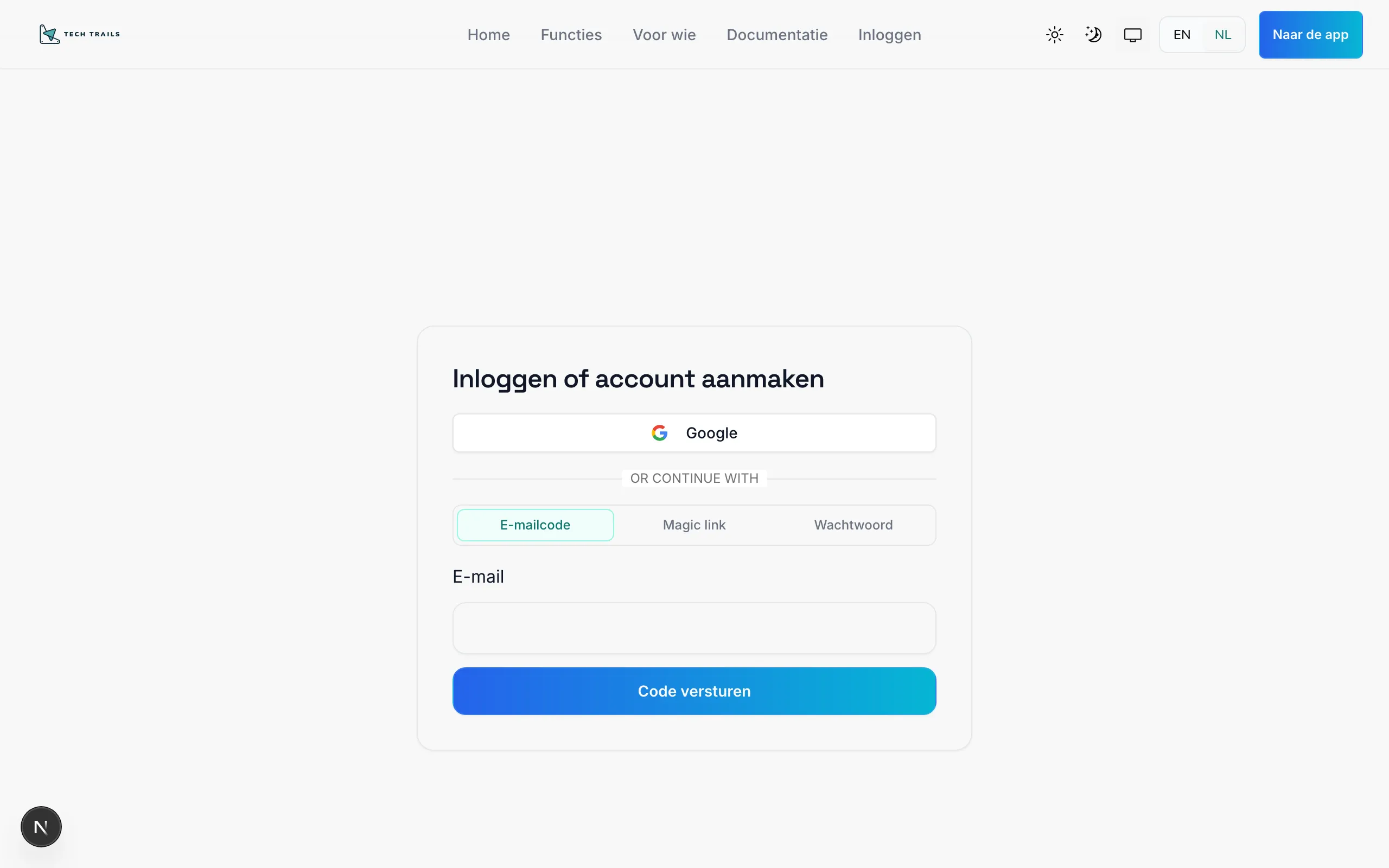
Sign in with Google
Section titled “Sign in with Google”- Click Google.
- Choose the Google account for your organization or the account tied to your training.
- Approve permissions if Google asks.
- You are redirected into the app (
/app) based on your role.
Sign in with an email code
Section titled “Sign in with an email code”Useful if you prefer not to remember a password: you receive a one-time code by email.
- Open the Email code tab.
- Enter your email address.
- Click Send code.
- Open your inbox and find the email with the 8-digit code.
- Enter the code and click Continue.
Sign in with a magic link
Section titled “Sign in with a magic link”A magic link signs you in through a one-time link in your email — no code or password.
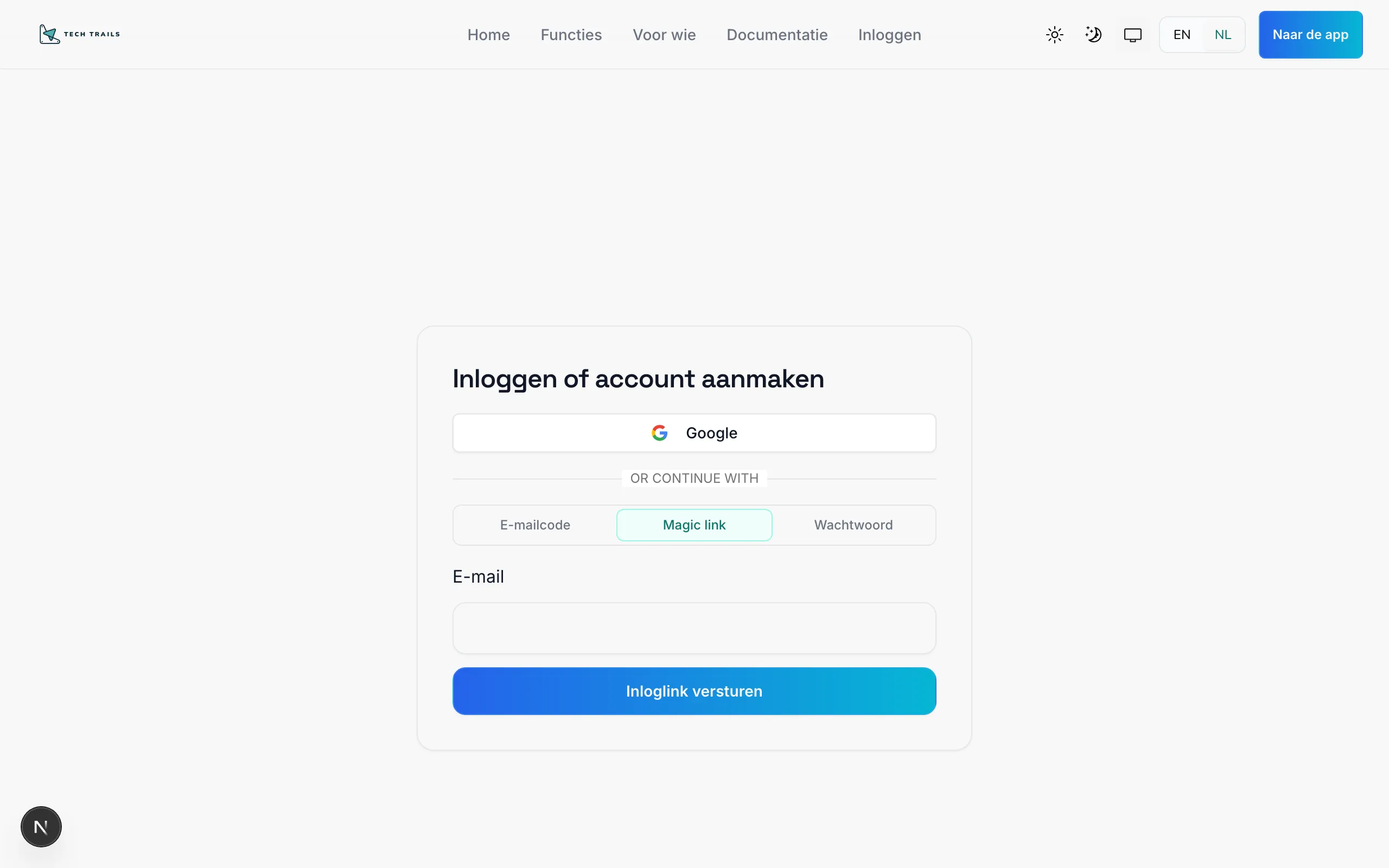
- Open the Magic link tab.
- Enter your email address.
- Click Send sign-in link.
- Open the email and click the link.
- You are signed in and sent to the app.
Sign in with a password
Section titled “Sign in with a password”If you have set a password (or chose one when signing up):
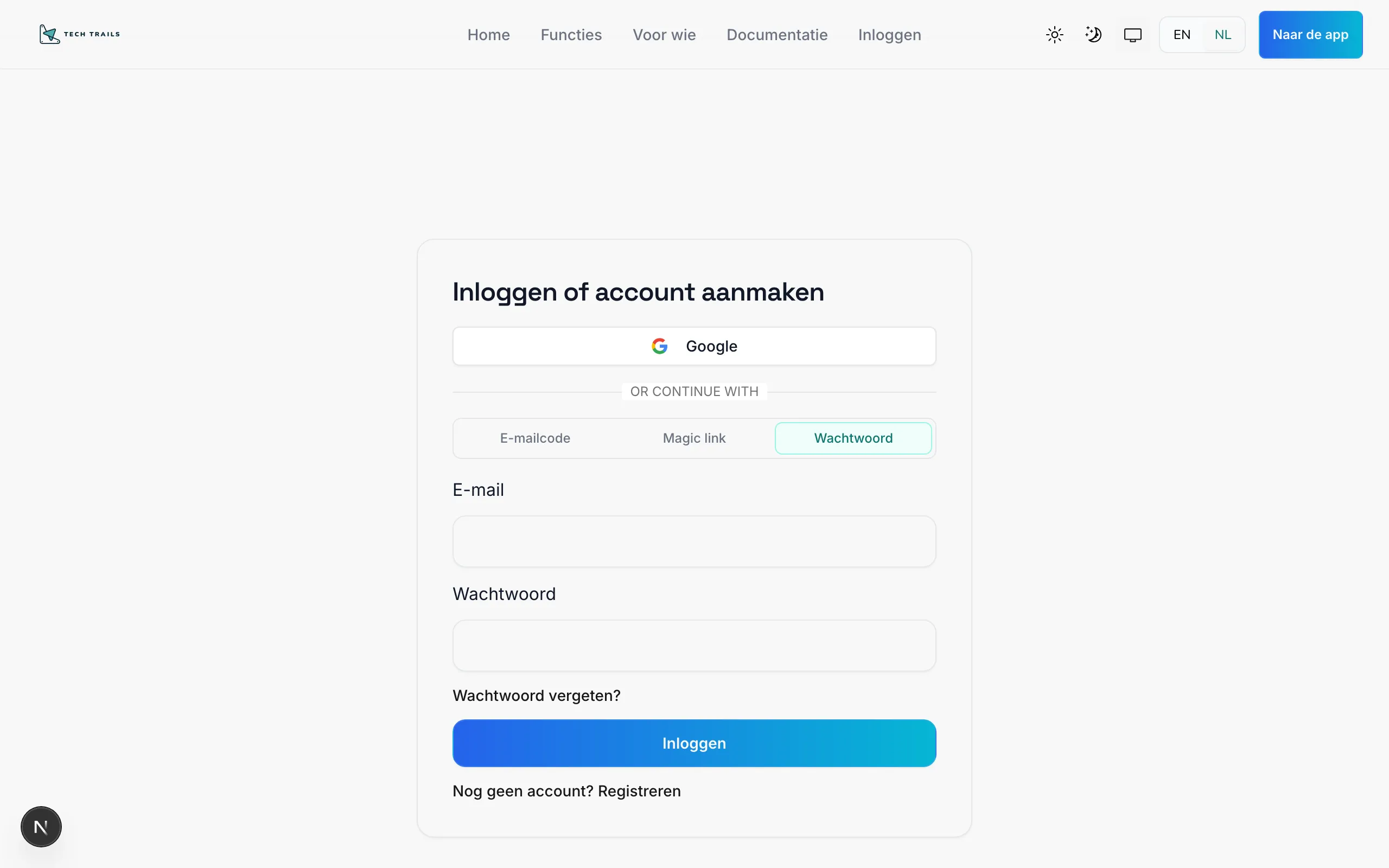
- Open the Password tab.
- Enter your email and password.
- Submit to sign in.
- If it fails, try resetting your password or another method above.
After signing in
Section titled “After signing in”You land on /app. The LMS redirects you to the home screen for your role (trainee, trainer, client, or admin). More in Next steps.